Showing posts with label GOOGLE TRICKS. Show all posts

Friday, March 23, 2012

Google Search Tricks And Tips

Google is the search engine giant with lot of features to search, but you’re missing out on a lot of that kind of features. Don't worry this articale defiantly help you.

Exact Words and Phrases

It is one of the most basic and useful method to search using quotations.
“vishnuparam007”


How to Exclude a Word in Google Search

The minus sign helps you to avoid the word in the search
Ex:- vishnuparam007 -facebook

How To Use Google For Searching Particular Site

One of the best useful method by Google which really helpful for searching a particular website which does not have search options
Ex: site: vishnuparam007.blogspot.com facebook

You Get the Search


Time Ranges

you can filter google search accrding to the period using this method
Ex: vishnuparam007 2010..2011


File Type

If you want to search a particular file you can use this method. sometimes you need pdf files
Ex: filetype:pdf google


 Word Definition


Google is also use as a dictionary for getting a word definition, meaning and how to pronounce.
define:vishnu


Use Google As Calculator

Google is  a best calculator too
Ex: 5+5-3+4+6*2+2


Unit Conversions

Above mentioned calculator can also convert the units also.
Ex- 50gigabytes in kilobytes


Dont Forget To Share this to Your Friend Also.......

Sunday, February 12, 2012

How to Connect Google Plus Page With Facebook Page

Hi guys many of the visitors asking me to post a trick to add the google plus page with facebook page
 Now the time is up for posting this trick

 Conditions:
Admin of Google Plus Page                     
Admin Of Facebook Page

What is Next?

1. Sign in to Facebook
2. Click here (link direct you to a application which help you to add Google plus page)
3.Allow User Permission
4. Select your page
5. Go to the page and now you can find a new tab google plus in left side
6.Click on the tab
7.Click configure
 8. Copy paste the Google Plus page profile Id

 Eg:  https://plus.google.com/117760811157987706815/posts (Red part of the url is the page profile Id)

 9.Click Change

Done! Now go to your Facebook page and click Google plus tab, now you can view the activities of you Google plus page inside Facebook

For Demo Page Click Here

Google Valentines Day Surprice 2012

hi guys search gaint Google also give a surprice gift for there users              

Are you ready for the surprice? Yes...

 Copy and paste the code in google search and see the magic from the google


 sqrt(cos(x))*cos(300x)+sqrt(abs(x))-0.7)*(4-x*x)^0.01, sqrt(6-x^2), -sqrt(6-x^2) from -4.5 to 4.5

Use Ctrl+C to copy this code right click option is disable

Happy valentines day!!!

Tuesday, December 13, 2011

Import Orkut Photos To Google Plus

Google has launched a tool to import your Orkut Photos to Google+ which is a clear indication that Google might shutdown Orkut going forward and concentrate fully on Google+ as its only Social Networking Platform.
OrkutPhotoExportToolYou can check your Google+ right sidebar for the importer tool or Alternatively you can Export from Orkut as well using the Copy Albums to Google+ Link on your Albums Page.

                                 
Import images using  Orkut Album Exporter Tool


Like The Post

How To Install Greasemonkey On Google Chrome

Hi guys, the new version of Google Chrome is supporting Greasemonkey scripts.

 Method

 1. Download Latest Google Chrome by clicking here or update existing installation.


2. Install Greasemonkey(in google chrome Tampermonkey) by clicking here

 Done!!!

Like The Post

Friday, December 9, 2011

Get Google Online Storage For Free


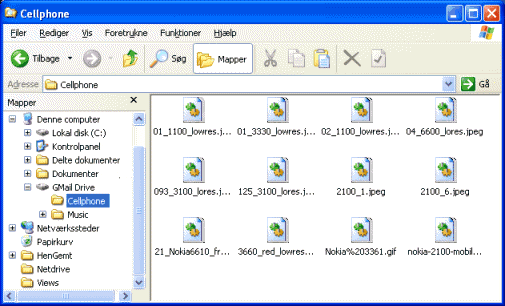
 GMail Drive is a free third-party Windows Shell namespace extension ("add-on") for Google's Gmail. GMail Drive is not supported by Google. It allows a user to access a virtual drive stored in a Gmail e-mail account by causing the contents of the Gmail account to appear as a new network share on the user's workstation. In order to use this add-on, the user needs a Gmail e-mail account. The add-on enables the user to use the standard Windows desktop file copy and paste commands to transfer files to and from the Gmail account as if it were a drive on the user's computer.


You Can Download by clicking here!!!

Step1:  You Need To Create An Account In Gmail (use new mail id recommended)

Step2: Download And Install Gmail Drive

Step3: Sign In to the Gmail through the Software

 Done!!! now you can save the files to the Google server

ScreenShots


Wednesday, December 7, 2011

Download New Gmail Application For Ipad And Iphone


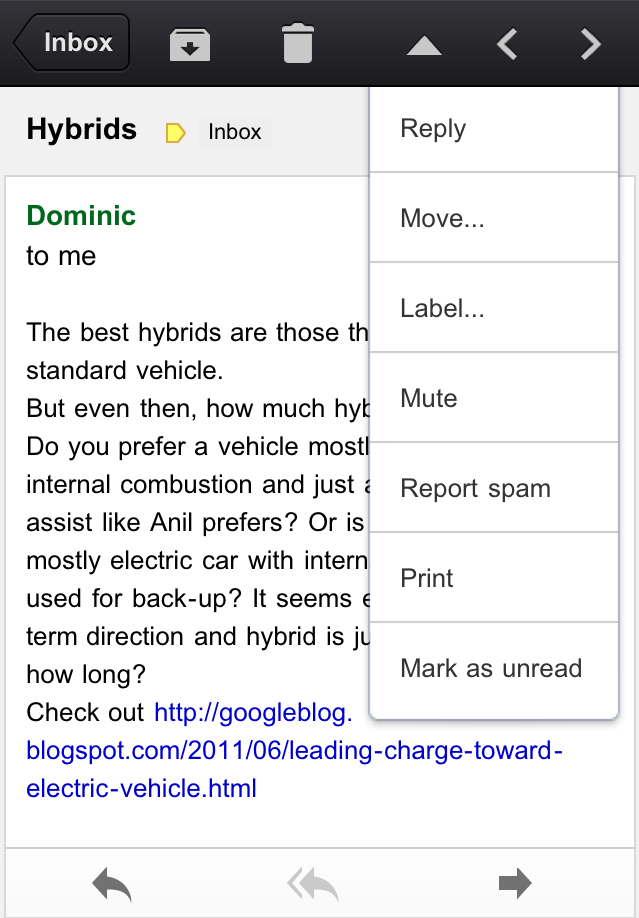
Introducing the Gmail app for iPhone, iPad and iPod touch


Waiting. Walking. Watching TV. Working out. Winding down. Waking up. We check email pretty much everywhere these days. And when we do, we want easy access to our important messages so we can respond quickly and get back to life -- or slinging birds at thieving green pigs.

With that in mind, we’ve created a new Gmail app for iPhone, iPad, and iPod touch. We’ve combined your favorite features from the Gmail mobile web app and iOS into one app so you can be more productive on the go. It’s designed to be fast, efficient and take full advantage of the touchscreen and notification capabilities of your device. And it’s one more reason to switch to Gmail.

Speed
We want to give you the information you need quickly, with minimal effort and distraction. So we’ve included some time-saving features:
  • Get alerted to new messages with push notifications and sounds
  • Find an email in seconds with search across your entire inbox
  • Autocomplete email addresses from your Gmail contacts or select from your device’s address book
  • Upload photos with a click using the new attachment button in compose view
  • On iPad, navigate your inbox and read your mail simultaneously with split view

Upload photos

Reply, move, label and more

Efficiency
Our inboxes overflow with dozens and even hundreds of messages a day—and this can be even more challenging on a smaller screen. The new Gmail app helps organize your mail so you don’t have to go wading through your inbox to find that key message from your boss or loved one:
  • Focus on your important messages first with Priority Inbox
  • Quickly scan countless emails on the same subject with threaded conversations
  • Organize your mail by archiving, labelling, starring, deleting and reporting spam
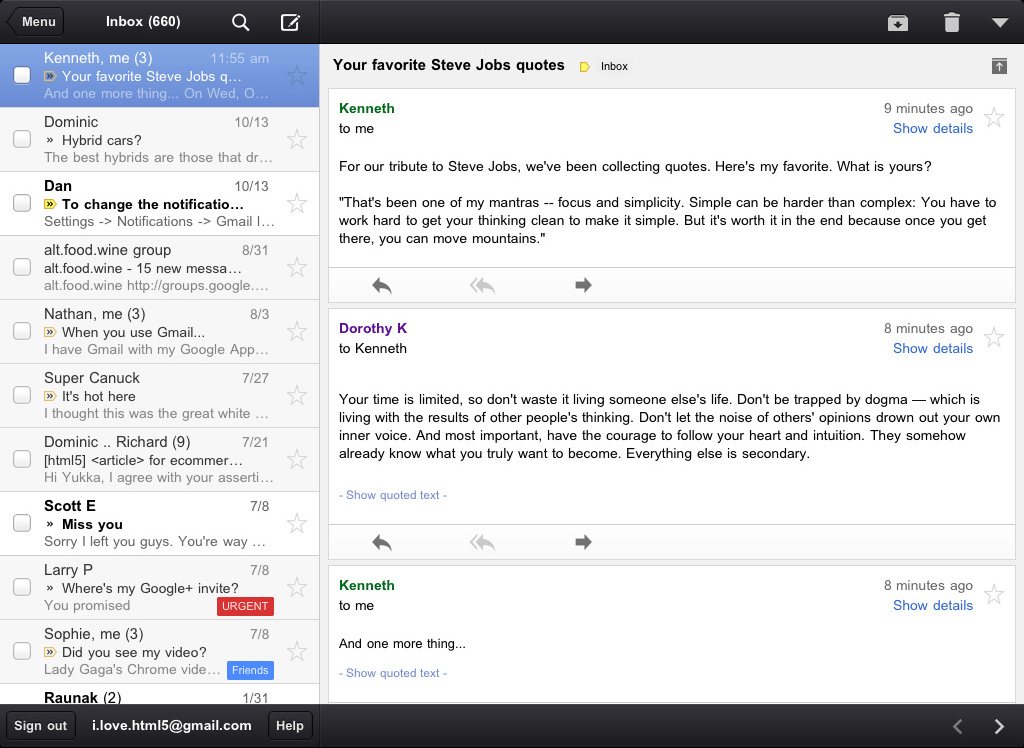
Threaded conversations on the iPad

Touch
We’ve also optimized the interface so you can perform common actions in Gmail with the lightest touch:
  • Pull down your inbox to rapidly refresh if you’re eager for new mail
  • Swipe right to view your labels without ever leaving your inbox
  • Swiftly scroll through dozens of emails just by sliding your finger

Pull down to refresh

Swipe right to view labels
We hope the Gmail app makes checking email on the go a little easier. It is available in the App Store today and works on all devices running iOS 4+. For more information
Source:Google

Wednesday, November 23, 2011

Google Chrome Remote Desktop Beta 2011

Google Chrome Remote Desktop BETA allowing users to remotely access another computer through Chrome browser or a Chrome book.

chrome remote desktop beta

Google Chrome Remote Desktop BETA

Download extension of Google Chrome Remote Desktop BETA.
chrome remote desktop connect

The Goal of this beta release is to demonstrate the code Chrome Remoting technology and get feedback from users. This version enables users to share with or get access to another computer by providing a one-time authentication code. Access is given only to the specific person the user identifies for one time only, and the sharing session is fully secured. One potential use of this version is the remote IT helpdesk case. The helpdesk can use the Chrome Remote Desktop BETA to help another user, while conversely a user can receive help by setting up a sharing session without leaving their desk. Additional use cases such as being able to access your own computer remotely are coming soon.


Chrome Remote Desktop BETA is fully cross platform, so you can connect any two computers that have a Chrome browser, including Windows, Linux, Mac and Chromebooks.


Comment Your Feedbacks And Don't Forget To Share Us! :-)

Tuesday, November 22, 2011

Google New 2-Step Verification

Why you should use 2-step verification

2-step verification adds an extra layer of security to your Google Account by requiring you to have access to your phone – as well as your username and password – when you sign in. In addition to your username and password, you'll enter a code that Google will send you via text or voice message upon signing in.
2-step verification drastically reduces the chances of having the personal information in your Google account stolen by someone else. Why? Because hackers would have to not only get your password and your username, they'd have to get a hold of your phone.

How you sign in with 2-step verification

Signing in with 2-step verification is easy.
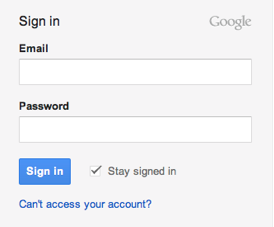
  1. Go to the sign-in page and enter your username and password like you normally do.
    Google's new sign-in page
  2. Then you’ll be asked for a six-digit code, which you'll get from your phone. If you want, when you enter your code, you can choose to remember your computer for 30 days -- this means you won’t be asked for a code again when you sign in from this computer for 30 days. If you sign in from another computer, however, you’ll be asked for a code.

    image of phone to verification screen
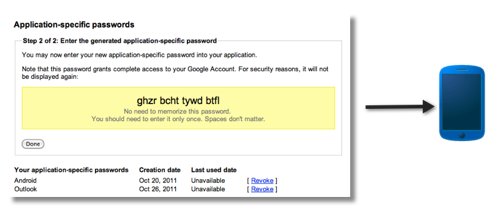
  3. After you turn on 2-step verification, non-browser applications and devices that use your Google Account (such as the Gmail app on your phone or Outlook), will be unable to connect to your account. However, in a few steps, you can generate a special password called application-specific password to allow this application to connect to your account -- and don't worry, you'll only have to do this once for each device or application.

    image of application-specific password to phone


Signing in using application-specific passwords

The codes that you’ll get with 2-step verification don’t work with all applications. There are a few applications that use information from your Google Account (like the Gmail application on your phone, or Outlook) that require another type of code. These are called application-specific passwords.
Some devices and applications that use these special passwords include:

How to generate an application-specific password

Unlike a verification code that you receive from your phone or through Google Authenticator, application-specific passwords are generated. You don’t have to memorize them, ever - you simply generate a new one each time you need to sign into a particular application. Follow the steps below to generate your application-specific password:
  1. Visit the Authorizing applications & sites page new window (pictured below) under your Google Account settings.
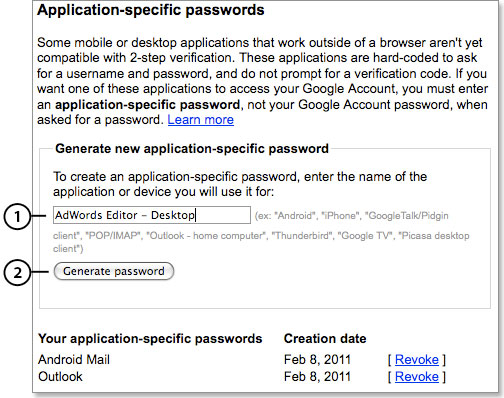
  2. Under the Application-specific passwords section, enter a descriptive name for the application (label 1) you want to authorize, such as "AdWords Editor – Desktop," then click “Generate application-specific password" (label 2).
application-specific password creation
You'll then see the application-specific password you just created (3). You'll also see the name you wrote in for the device (4) and a link to Revoke (5) -- or cancel -- the code.
application-specific password exampleOnce you click Done, you’ll never see that application-specific code again. But don't panic: You can generate a new one whenever you’re prompted for an application-specific password by a non-browser device or application -- even a device or application you’ve authorized before.

Using application-specific passwords

When prompted for a password when you sign in to a non-browser application or device that accesses your Google Account:
  1. Enter your username.
  2. Enter your application-specific password in the password field.
  3. If your application has an option to remember your application-specific password or stay signed in, you can select that option so you won’t have to generate and enter a new application-specific password each time you access your account from this application or device.

Turning off 2-step verification


Did your email client or applications stop working when you turned on 2-step verification? Don't fret -- you can get applications and devices that need access to your Google Account working again in minutes using application-specific passwords.

Turning off 2-step verification

  1. Visit the Using 2-step verification new window page under your Google Account settings. Sign in with your username, password, and verification code if prompted.
  2. Click Turn off 2-step verification.
  3. A pop-up window will appear to confirm that you want to turn off 2-step verification. Click OK.

Revoking and destroying passwords and codes to protect your account

If you used application-specific passwords to authorize applications to access your Google Account, we recommend you go back to using passwords -- rather than application-specific passwords -- to access these applications. That way, you can revoke your application-specific passwords so nobody else can use them:
  1. Visit the Authorizing applications & sites new window page under your Google Account settings.
  2. Click Revoke for any application or device whose code you want to revoke.
  3. For each application that you revoked an application-specific password, you'll need to reauthorize the application by entering your username and password, as you did before you turned on 2-step verification. You might not be prompted for this information the next time you use the application as some applications will take longer to recognized that an application-specific password has been revoked.
In addition, remember to destroy all backup codes that you had been using to verify this account.

Tuesday, November 8, 2011

How to Import Facebook Contacts to Google Plus Or To Gmail


Hello friends, I hope you all are happy with the Free Google plus invitation through my Blog Give Away.Thanks to all for like on my fan page as well as sharing my blog posts on Facebook.After joining Google plus- many people asked, is there any way we can import Facebook contacts to Google plus.
I Google yesterday and find a a reason Why  Facebook Block Export Facebook contacts . but don’t worry we find a way to import your all Facebook friends to Google plus.
There is no direct way, we can export Facebook contacts, so, what we have to do is follow below steps to get all your Facebook friends to Google+.
You need to have one Yahoo Email Address, if you don’t have please register at yahoo to get yahoo email address.

How to Import Facebook friends to Google Plus

Importing contacts to Facebook required to follow two steps.Facebook don’t allow Gmail service to import their data. only we can do using yahoo service. if you don’t have yahoo email address, please register and take a one for.
  1. First we Import Facebook contacts to yahoo
  2. then, we  link yahoo profile to access facebook contatcs . that’ it All Your Facebook Friends in Google Plus.
Hmm….Not getting..don’t worry , here is step by step process explain how to import Facebook contacts to yahoo.Hotmail and Google plus service
  1. How to Import Facebook contacts to Yahoo

Login to  your yahoo email address’s and go to contacts Tab as shown in Below screen
Now click on import contacts , you will be come which various options, where you wold like to import conatcs like  Facebook,Yahoo.GMail and so on Simply click on facebook icon to start importing contacts from facebook

import facebook contacts
After you complete with importing contacts to yahoo, a message comes like as shown in below screenshot.
So, all your friends contacts in yahoo now, yahoo allow us to export those contatcs to various format.

Connect Yahoo Profile from Google Plus to import Facebook Contacts

Now simply loging to your google+ Account, and  go to circle tab, and connect your yahoo profile from google plus account


That’s it, Now all you facebook contacts are now imported and accessible from google plus service. let me know any issue in steps of import facebook contacts to google plus.
Please don’t forget to share your valuable words in context of importing facebook contatcs and google plus experience.

Like The Post

Sunday, September 25, 2011

Who copied your content?


Hello!
         Is someone is making money by copying your content? Nowadays plagiarism is very common between bloggers, and people who don't know how to write posts or don't want to invest there time writing posts for their blogs are copying other's content which is not good. Some guest writers are also cheating bloggers by posting others content to their blogs.

How To Save Your Blog From Plagiarize:


It's impossible to preventing theft when people see that your site has some success but, you can still make it hard to copy from your blog...

I've already posted a post about how to save your blog from plagiarize click HERE to read the post.

See Who Copied My Content:
You can see who copied your content by visiting copyscape.com. Paste the url of a post and hit Enter and you'll see the other sites who copied that post. You can also report plagiarism if you want by clicking HERE to visit the page and fill the form given there... To see if the content is unique click Premium on that page and Sign up.


Friday, May 20, 2011

Make Your Own Search Engine


Hello!
         In this post I'll tell you how to make your own search engine....


To make your own search engine follow these steps...
Make your own search engine:
2-Enter your name or whatever you wanna write there.
3-Click on Create My Search Engine.

(watch this to see how)


Tuesday, May 17, 2011

Google Gravity trick

Hello!
        Its a cool trick of google. To do this trick goto,

 google.com, type google gravity & press I'm feeling Lucky. And every thing
 will fall down.


(watch this video to see how to do this)