Showing posts with label How To. Show all posts

Thursday, March 1, 2012

How To Backup Your Blogger Posts And Comments


Backup your blogger posts and comments regularly. This is blogger tip I think every blogger should follow for its safety. Backup your posts regularly. Very less amount of bloggers would have been using this tip. So lets follow this tip and start backing up your blog posts from now.
How to backup bloggers posts for all bloggers including blogspot users.

Just Follow These Steps:


Step 1.   Login to your blogger account, click on drop-down menu and then click on Setting.


Step 2.   On the left side under the setting tab click on Other.

Step 3.   At the top of page you will see an option of Export Blog. Click on Export blog.


Step 4.   Then click on Download blog.
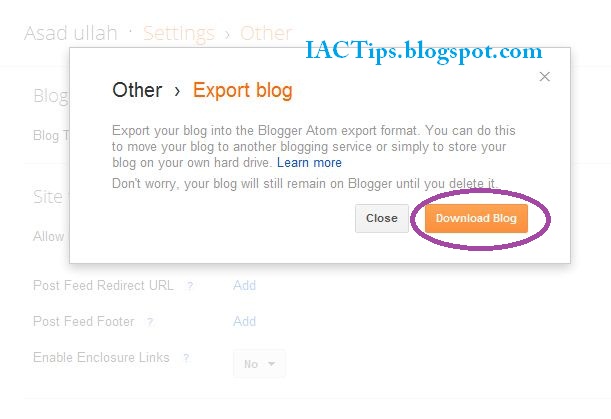


And That's It.


Your Blog ( Content + Posts ) is save as .xml document. It's quite small file. You will not be able to see it, or read it on externally, but you can always upload it through Blogger.

Now you go to your any other blog and get there the import blog option following same path as above and upload the file you downloaded when it asks after clicking on import blog. Your all posts and comments will be uploaded, then the blogger will ask you to publish all posts, select the posts you want to publish and click publish, all selected posts will be published.
If you want to download your blogger template design also It's Here

Drop Your Comments......

How To Backup Your Blogger Posts And Comments


Backup your blogger posts and comments regularly. This is blogger tip I think every blogger should follow for its safety. Backup your posts regularly. Very less amount of bloggers would have been using this tip. So lets follow this tip and start backing up your blog posts from now.
How to backup bloggers posts for all bloggers including blogspot users.

Just Follow These Steps:


Step 1.   Login to your blogger account, click on drop-down menu and then click on Setting.


Step 2.   On the left side under the setting tab click on Other.

Step 3.   At the top of page you will see an option of Export Blog. Click on Export blog.


Step 4.   Then click on Download blog.


And That's It.


Your Blog ( Content + Posts ) is save as .xml document. It's quite small file. You will not be able to see it, or read it on externally, but you can always upload it through Blogger.

Now you go to your any other blog and get there the import blog option following same path as above and upload the file you downloaded when it asks after clicking on import blog. Your all posts and comments will be uploaded, then the blogger will ask you to publish all posts, select the posts you want to publish and click publish, all selected posts will be published.
If you want to download your blogger template design also It's Here

Drop Your Comments......

Wednesday, February 29, 2012

How To Backup Or Download Full Blogger Template

How to back up your blog template or download it to your computer so you have an copy of your template design always if you needed that design in future or many of us loose the design setting while we are trying to edit our template.
Its very important to save a copy of your template before you do any customization on it ( Any change in template ).

It's very easy to do. It's such a small file, so you can keep it forever.

Follow these simple steps to download / Backup your Blogger Template:

Step 1.   First of all login to your blogger account, click on Drop-Down menu and then click on Template.


Step 2.   Click on Backup / Restore.


Step 3.   Now click on Download Full Template. 


And all you done.

Note:    Keep in mind, downloading template doesn't mean you've saved the content ( posts, comments, widgets ) of your blog,
If you want to backup blogger posts and comments read this post How To Backup Blogger Posts And Comments.


Drop Your Comments...

How To Backup Or Download Full Blogger Template

How to back up your blog template or download it to your computer so you have an copy of your template design always if you needed that design in future or many of us loose the design setting while we are trying to edit our template.
Its very important to save a copy of your template before you do any customization on it ( Any change in template ).

It's very easy to do. It's such a small file, so you can keep it forever.

Follow these simple steps to download / Backup your Blogger Template:

Step 1.   First of all login to your blogger account, click on Drop-Down menu and then click on Template.


Step 2.   Click on Backup / Restore.


Step 3.   Now click on Download Full Template. 


And all you done.

Note:    Keep in mind, downloading template doesn't mean you've saved the content ( posts, comments, widgets ) of your blog,
If you want to backup blogger posts and comments read this post How To Backup Blogger Posts And Comments.


Drop Your Comments...

Sunday, February 26, 2012

How to Disable Blogger Official Lightbox

Follow these simple steps to disable LightBox

Step 1.  Login to your blogger account. Click on your blog.


Step 2.   On left side click on Settings and under Settings tab click on Posts and Comments. Then Scroll to the option Showcase images with Lightbox?  and set to NO.


Step 3.  Save the settings and all you done.

Drop your comments.

How to Disable Blogger Official Lightbox

Follow these simple steps to disable LightBox

Step 1.  Login to your blogger account. Click on your blog.


Step 2.   On left side click on Settings and under Settings tab click on Posts and Comments. Then Scroll to the option Showcase images with Lightbox?  and set to NO.


Step 3.  Save the settings and all you done.

Drop your comments.