Showing posts with label Blogger. Show all posts

Friday, March 16, 2012

Replace Older, Newer And Home Naviagtion Links With Button Images

In this tutorial I'll show you that how to replace older, newer and home Navigation links with button images. These Navigation links are located at the bottom of posts section.

Just Follow these simple steps:
Note: Backup Your Template before making any changing in Template.

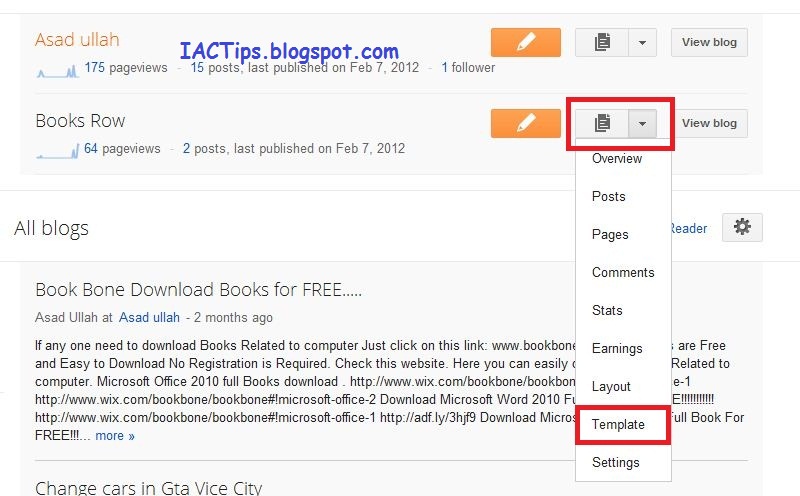
Step 1.  Login to your blogger account. click on drop-down menu and then click on template.


Step 2.   Now click on Edit Html and then click on Expand Template Widgets checkbox.


Step 3.   Search for ( press CTRL+F for a search bar ). Replace with below code.


Step 4.  Search for and replace it with below code.


Step 5.   Now last time search for   and replace with below code.


Click on Save Template.

You can change your own icons by replacing the image url in the above three codes.

Drop Your Comments.....

Replace Older, Newer And Home Naviagtion Links With Button Images

In this tutorial I'll show you that how to replace older, newer and home Navigation links with button images. These Navigation links are located at the bottom of posts section.

Just Follow these simple steps:
Note: Backup Your Template before making any changing in Template.

Step 1.  Login to your blogger account. click on drop-down menu and then click on template.


Step 2.   Now click on Edit Html and then click on Expand Template Widgets checkbox.


Step 3.   Search for ( press CTRL+F for a search bar ). Replace with below code.


Step 4.  Search for and replace it with below code.


Step 5.   Now last time search for   and replace with below code.


Click on Save Template.

You can change your own icons by replacing the image url in the above three codes.

Drop Your Comments.....

Thursday, March 15, 2012

CSS button generator

There are many old timey Button generator out there but with new css you can make some awesome buttons. To save your time you can use generators. One of the best and easy to use button generator can create awesome css buttons like the image below.

The css will be already generated for you to copy paste. You can very use these codes in your website or blogs very easily. An example of the code is shown below


Get this

If your still confused about how to use your generated button, You can check out step by step tutorial here.


And now to give you the magic link:

http://www.cssbuttongenerator.com/

Wednesday, March 14, 2012

Changing Blogger Font Size ( J-Query Widget )

Changing Blogger Posts font size is a cool widget. This widget will allows your reader to change the font size of your blogger posts as they want, bigger or smaller. This widget will change blogger post font size very fast. With the help of this widget your reader do not need to refresh page or do any thing else, they just drag a point to right or left and they get bigger or smaller text. So let's see how to add this widget to your blogger.

Note: Before you apply any changing to your blogger template, Download Full Template of your blog.


Now just follow these simple steps to add Widget.

Step 1.    Log in to your blogger account, click on drop down menu and then click on template.


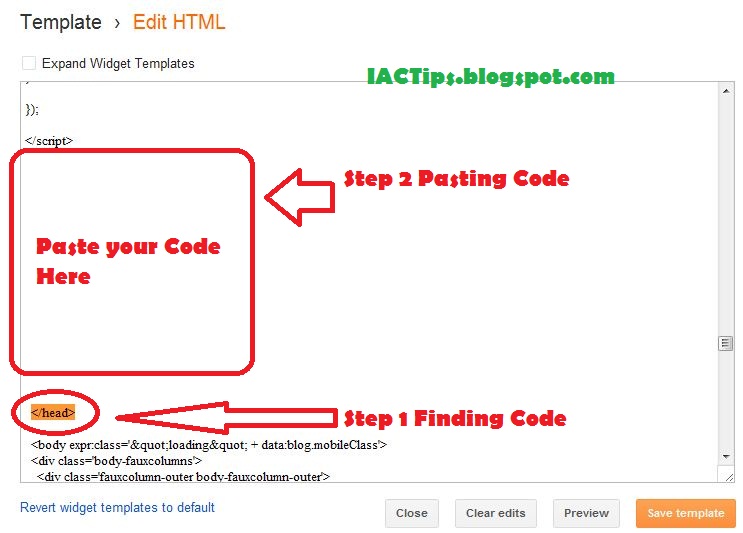
Step 2. Click on Edit HTML


Step 3.  Find the following code


and before / above this code add the following code.


Step 4.   At the same page try to find the following code or a similar one


And you'll have to add simple code before and after it, then it will look like following.


after adding these codes click on Save Template.

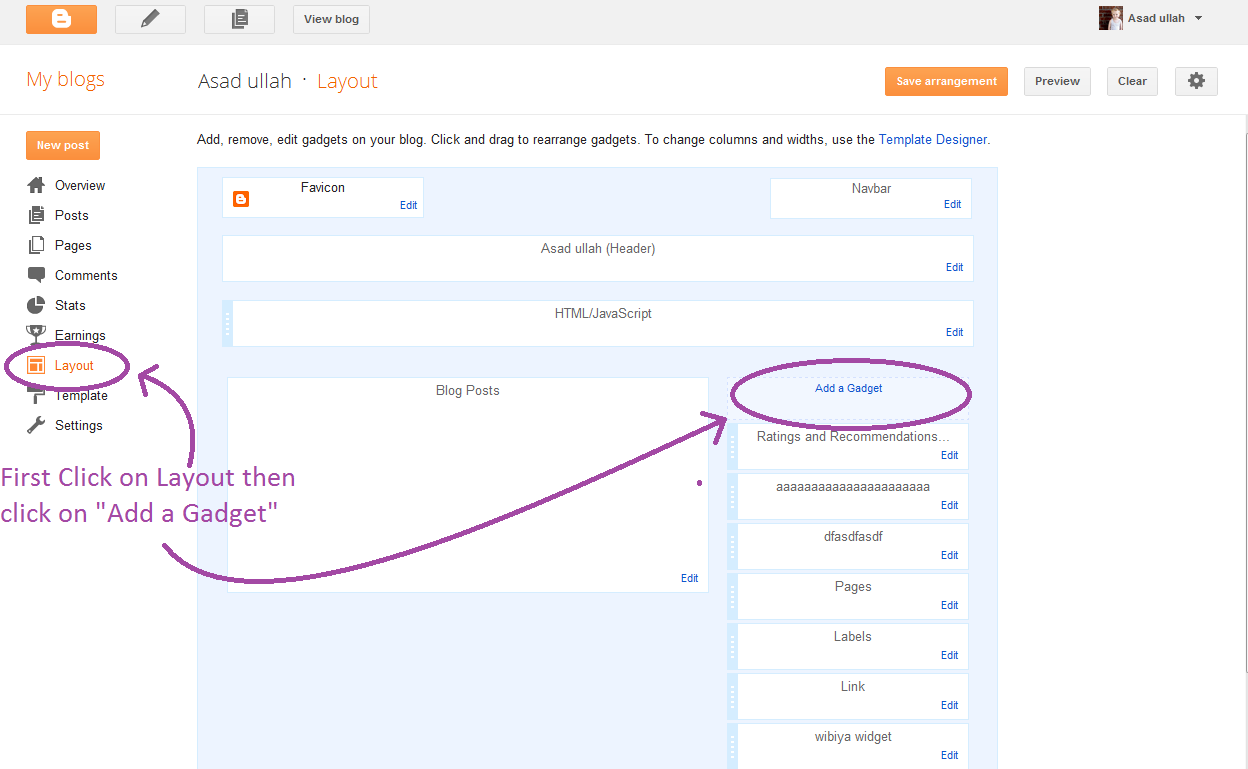
Step 5.   Now click on Layout tab, click on Add A Gadget and choose Html / Javascript .


And in the content area, paste the following code.


And Click On "Save".
Now your widget is ready for your blog.


Drop Your Comments........
This Script is originally made by CiudadBlogger.com

Changing Blogger Font Size ( J-Query Widget )

Changing Blogger Posts font size is a cool widget. This widget will allows your reader to change the font size of your blogger posts as they want, bigger or smaller. This widget will change blogger post font size very fast. With the help of this widget your reader do not need to refresh page or do any thing else, they just drag a point to right or left and they get bigger or smaller text. So let's see how to add this widget to your blogger.

Note: Before you apply any changing to your blogger template, Download Full Template of your blog.


Now just follow these simple steps to add Widget.

Step 1.    Log in to your blogger account, click on drop down menu and then click on template.


Step 2. Click on Edit HTML


Step 3.  Find the following code


and before / above this code add the following code.


Step 4.   At the same page try to find the following code or a similar one


And you'll have to add simple code before and after it, then it will look like following.


after adding these codes click on Save Template.

Step 5.   Now click on Layout tab, click on Add A Gadget and choose Html / Javascript .


And in the content area, paste the following code.


And Click On "Save".
Now your widget is ready for your blog.


Drop Your Comments........
This Script is originally made by CiudadBlogger.com

Sunday, March 4, 2012

How to backup your blogger blog template

It is very important to back up your blogger template before you start messing with it. If you mess up the template and don't know where and how to fix you might have to change the whole template. By backing up your template you don't have any risk for any unexpected problem, if you do then you can just re-upload your old template and your blog is back to normal. Its very easy to back up your template in blogger blog. Just follow the instructions below.

How to back up your template on the new blogger interface


1. Go to blogger.com
2. Choose your blog and click on the down arrow
3. Click on the template
4. Click on the Backup/Restore from top right
5. Now click download full template and save it.

How to back up your template on old blogger interface


1. Go to blogger.com
2. Click design for the blog you want to back up
3. Click Edit HTML
4. Click on download full template and save it.

Add Drop-Down Menu For Blogger

This Menu is compatible with most of modern and classic browsers, and can be added for any template in only 3 steps,

Note: Don't forget to Backup your current blogger template ( If you don't know how to download blogger template Click Here to see article ).

Follow These simple Steps:

Step 1.   Log in to your blogger account, click on Drop-Down menu and then click on Template.


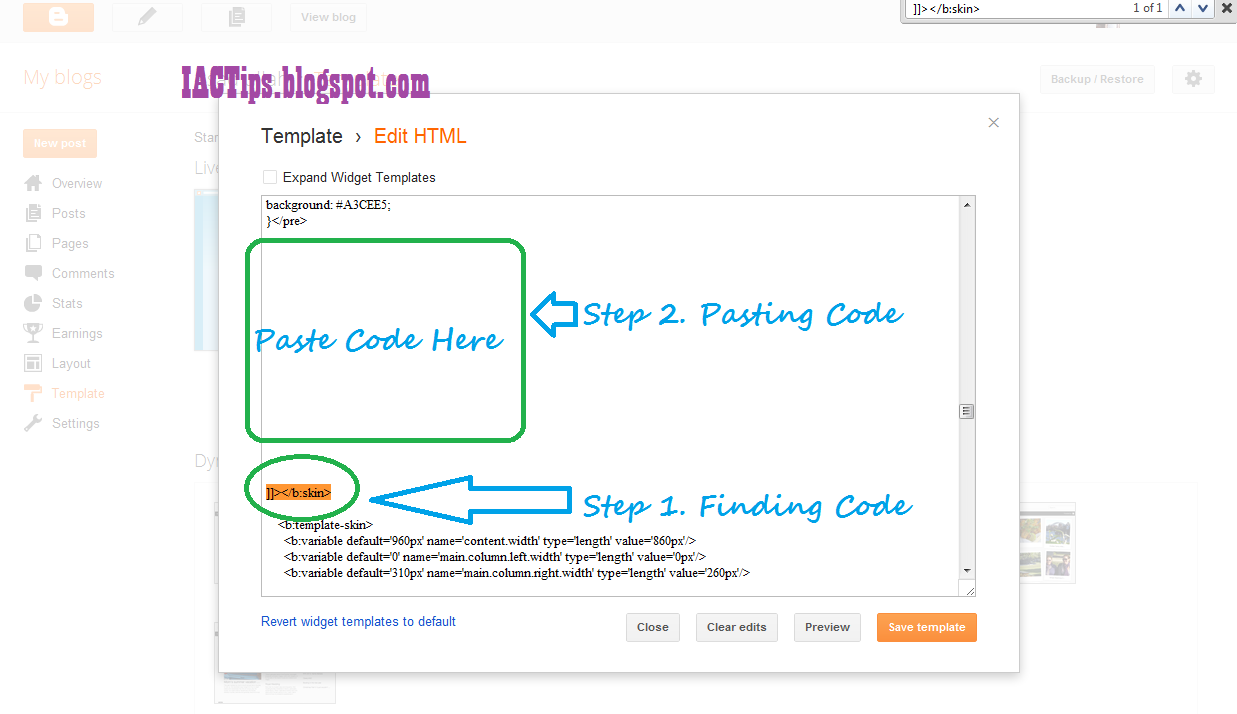
Step 2.   Click on Edit HTML and Find the following code ( Press CTRL+F for a search bar ).

]]>

And before / above this code add the following CSS code,


Step 3.   Now Find the following code (  Press CTRL+F for a search bar ).


Before / above this code add following code


Step 4.   Now Click on "Save Template".

Step 5.   Now go to your blogger Dashboard click on layout tab, click on Add A Gadget.


Any where on the screen, and choose "HTML / JavaScript".


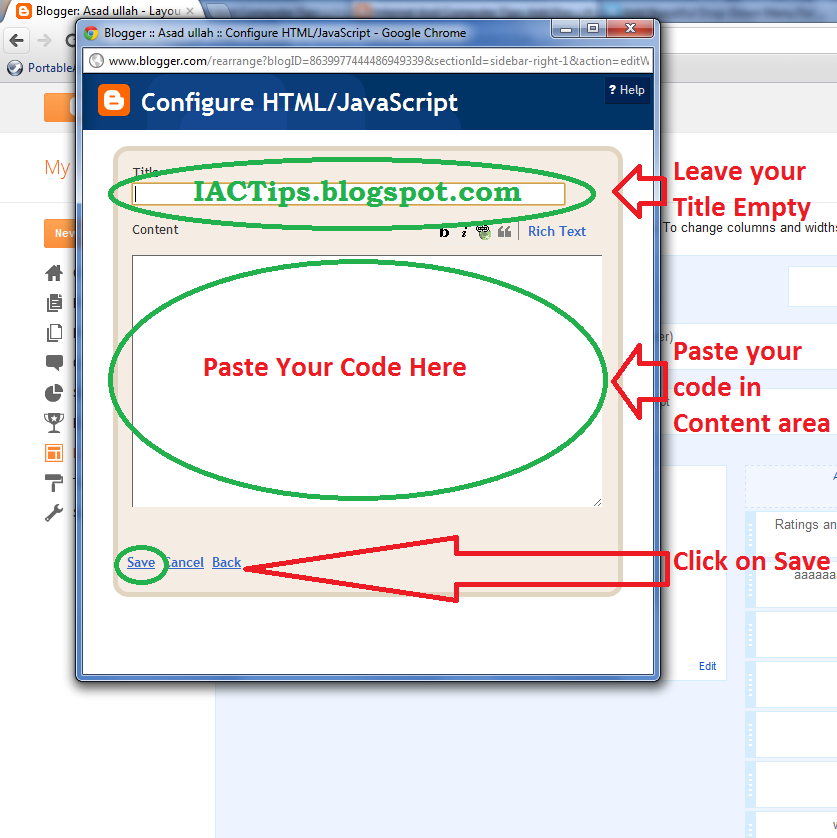
Leave the title empty and at the content area, Paste the following code.


Step 6.   And click on "Save".


Now , it's a important to move the new gadget from the current place to the top of your page, if it was on the sidebar, or any other place , just drag it to header and click on "Save"  again.

In last code you must change the menu titles and replace all # letters by right menu url.

Drop  Your Comments......

Add Drop-Down Menu For Blogger

This Menu is compatible with most of modern and classic browsers, and can be added for any template in only 3 steps,

Note: Don't forget to Backup your current blogger template ( If you don't know how to download blogger template Click Here to see article ).

Follow These simple Steps:

Step 1.   Log in to your blogger account, click on Drop-Down menu and then click on Template.


Step 2.   Click on Edit HTML and Find the following code ( Press CTRL+F for a search bar ).

]]>

And before / above this code add the following CSS code,


Step 3.   Now Find the following code (  Press CTRL+F for a search bar ).


Before / above this code add following code


Step 4.   Now Click on "Save Template".

Step 5.   Now go to your blogger Dashboard click on layout tab, click on Add A Gadget.


Any where on the screen, and choose "HTML / JavaScript".


Leave the title empty and at the content area, Paste the following code.


Step 6.   And click on "Save".


Now , it's a important to move the new gadget from the current place to the top of your page, if it was on the sidebar, or any other place , just drag it to header and click on "Save"  again.

In last code you must change the menu titles and replace all # letters by right menu url.

Drop  Your Comments......

Thursday, March 1, 2012

How To Backup Your Blogger Posts And Comments


Backup your blogger posts and comments regularly. This is blogger tip I think every blogger should follow for its safety. Backup your posts regularly. Very less amount of bloggers would have been using this tip. So lets follow this tip and start backing up your blog posts from now.
How to backup bloggers posts for all bloggers including blogspot users.

Just Follow These Steps:


Step 1.   Login to your blogger account, click on drop-down menu and then click on Setting.


Step 2.   On the left side under the setting tab click on Other.

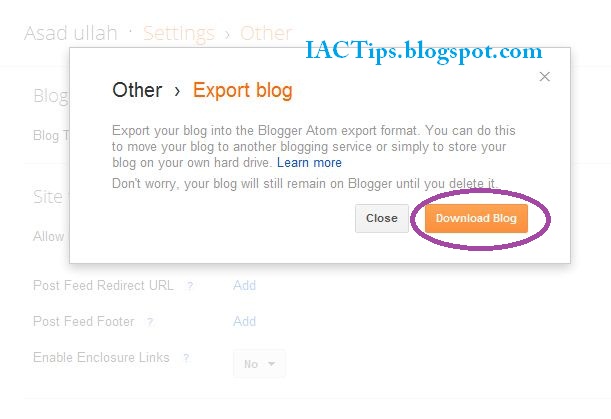
Step 3.   At the top of page you will see an option of Export Blog. Click on Export blog.


Step 4.   Then click on Download blog.


And That's It.


Your Blog ( Content + Posts ) is save as .xml document. It's quite small file. You will not be able to see it, or read it on externally, but you can always upload it through Blogger.

Now you go to your any other blog and get there the import blog option following same path as above and upload the file you downloaded when it asks after clicking on import blog. Your all posts and comments will be uploaded, then the blogger will ask you to publish all posts, select the posts you want to publish and click publish, all selected posts will be published.
If you want to download your blogger template design also It's Here

Drop Your Comments......

How To Backup Your Blogger Posts And Comments


Backup your blogger posts and comments regularly. This is blogger tip I think every blogger should follow for its safety. Backup your posts regularly. Very less amount of bloggers would have been using this tip. So lets follow this tip and start backing up your blog posts from now.
How to backup bloggers posts for all bloggers including blogspot users.

Just Follow These Steps:


Step 1.   Login to your blogger account, click on drop-down menu and then click on Setting.


Step 2.   On the left side under the setting tab click on Other.

Step 3.   At the top of page you will see an option of Export Blog. Click on Export blog.


Step 4.   Then click on Download blog.


And That's It.


Your Blog ( Content + Posts ) is save as .xml document. It's quite small file. You will not be able to see it, or read it on externally, but you can always upload it through Blogger.

Now you go to your any other blog and get there the import blog option following same path as above and upload the file you downloaded when it asks after clicking on import blog. Your all posts and comments will be uploaded, then the blogger will ask you to publish all posts, select the posts you want to publish and click publish, all selected posts will be published.
If you want to download your blogger template design also It's Here

Drop Your Comments......