Thursday, March 1, 2012

Ways to open documents (Doc) Word without Office (free)

 A majority (not to be exaggerated give approximate data) of documents that propagate throughout the Internet are in PDF format, but if you want to editable documents, usually using the MS Word format, with extension Doc or Docx .
 But of course Microsoft Office Word is to be paid so many times when you need to view a document (Doc) in that format, and a lack of such a program, it is almost impossible and frustrating: what alternatives we can find free?
  1.  Google Docs: Online tool for document management
 
 If you're in a hurry, and you have a computer with Internet access, this is perhaps the most viable option. The truth is that Google Docs is a web tool that lets you manage (view, edit, etc.) Text documents (supporting Docs). Link Google Doc

 2. OpenOffice.org: free office suite for excellence 
Ways to open documents (Doc) Word without Office (free)

 But if what you want is an office suite (including word processing, presentation designer, spreadsheet, etc.) for which you should not pay, because OpenOffice.org suite is the ultimate, as it is a free software .

Link: openoffice.org
  
3. Microsoft Word Viewer: Viewer for Word files (doc, docx)
Ways to open documents (Doc) Word without Office (free)
  If you want to see what content you want to open Word document, then use Microsoft Word Viewer is the most viable solution, since it is a viewer that provides for free the same Office, of course, limited in function.
 Tags: Internet tricks, word viewer, PC tricks, Office tricks, MSword tricks,

IObit Unlocker: Unlock files and folders occupied by processes

 IObit Unlocker is a free program that is available only in English, has the same function as that of Unlocker . Compatible with Windows 7, Vista, XP, etc.., Of 32/64 bits.
IObit Unlocker: Unlock files and folders occupied by processes

 Before we continue talking about IObit Unlocker, I commented that, for now it is beta, which means you are under development, so use at your own risk as they may be in error situations. Among the outstanding features are:
  •  Too easy to use: Simply right-click the folder or file and choose the option "IObit Unlocker", or drag files to the software interface
  •  Support for the operation of multiple objects at once (multiple folders or files)
  •  If you wish, you can "kill" (or terminate) the processes associated with the file
  •  Super safe, has no viruses or spyware or malware or anything else like it
  •  Unlike other programs, it is executed when the user simply chooses, so that the computer performance is not going to be affected
 I particularly like the fact that it is quite efficient in terms of CPU usage for the reason that it runs only when the user decides, other programs are running, always in the background, but run and are there occupying our memory. But meanwhile IObit Unlocker presents another plane where performance is an important point.

Link to download Click here http://www.iobit.com/iobit-unlocker/
Tags: Unlock files and folders, kill process, software tricks,PC tricks tricks

Delete the message "You want to scan and fix removable disk" in Windows 7

 Each time you insert a USB memory, either a flash drive, my cell phone with MicroSD, MP3 or MP4, or whatever you store information, I get an annoying and useless message that perhaps many would bother too and it is automatic Windows Vista / Windows 7 . The warning is "Do you want to analyze and fix Removable Disk". And here we will detail how to remove. The trick I've seen on our brother blog (in English), How-To New , an equivalent of Computer Blog but in English. The procedure for disposal is that dictates below:
  1.  Open the Run dialog and type "services.msc"
  2.  Find the item "Hardware Detection sell"
  3.  Completely disable it and restart Windows
 The following image illustrates clearly what must be disabled and how:

 Definitely a basically simple trick but many of us will avoid a hassle that surely all users of Windows Vista / 7 we have ever had.
Tags: Window tips, tricks, fix removable disk,PC tricks, Internet tricks

Copy DVD in Windows AVI or MPEG format: HandBrake Conversion excellent

 We are always thinking about how to do different things, and for example if you buy a video that we like, is likely to cause us to copy it to our computer to see ourselves not obliged to insert the DVD every time we play, for example, places where liquors are sold, they do this, otherwise, imagine, every time you change something in chaos.

 But to copy a DVD on a computer is not as easy and straightforward. But to do if there are programs like HandBrake, a free software quite powerful and easy to use, it will serve you much help when you want to save your copy of a DVD on your hard disk easily. The program requires the latest version. NET Framework to function properly. If you do not have it, I downloaded without much complication.  It is available for Windows, with 32 and 64-bit interface for XP, Vista, 7, 8, also works on Mac OS X and Linux distributions, so that we can consider that HandBrake is a software platform, which is complete.
 HandBrake has a simple interface, as shown in the screenshot above what is most important as it is very easy to use. The program allows you to select subtitles and the tool can also create them. Supports MPEG format and MKV.  This is definitely a program that will become an option to consider when copying DVD will be discussed. Download link. . http://handbrake.fr/
Tags: Internet tricks, PC tricks, Copy DVD in Windows AVI or MPEG

Download multiple files automatically - JDownloader

 While cruising the internet, can come to a game, captures our attention, such as Cabal. Proceed to download it to play from the comfort of our team. Of course, this requires dedication, as you take an hour or more until you can see the downloaded file. That this does not limit yourself, try completely free program that will get you out of trouble. JDownloader is a free and entirely in English that allows you to queue several download links. Now you can avoid the wait. Choose what you want to download overnight, it must leave it do its job JDownloader.


 This is ideal if you want to download an entire season of a new series, or to download games that are heavier compounds in several parts.  To download JDownloader, click here .  After running JDownloader, we have to place the link we want to download, even JDownloader detects it automatically.

How To Backup Your Blogger Posts And Comments


Backup your blogger posts and comments regularly. This is blogger tip I think every blogger should follow for its safety. Backup your posts regularly. Very less amount of bloggers would have been using this tip. So lets follow this tip and start backing up your blog posts from now.
How to backup bloggers posts for all bloggers including blogspot users.

Just Follow These Steps:


Step 1.   Login to your blogger account, click on drop-down menu and then click on Setting.


Step 2.   On the left side under the setting tab click on Other.

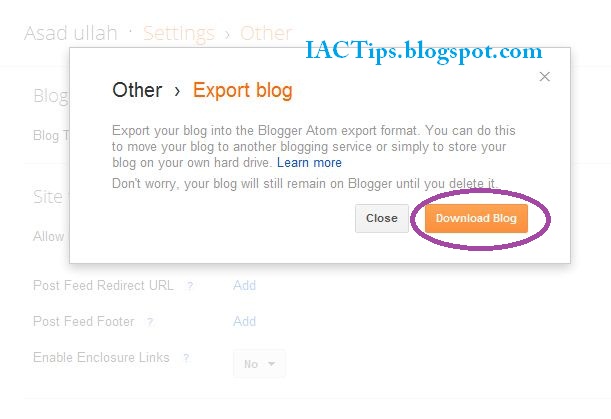
Step 3.   At the top of page you will see an option of Export Blog. Click on Export blog.


Step 4.   Then click on Download blog.


And That's It.


Your Blog ( Content + Posts ) is save as .xml document. It's quite small file. You will not be able to see it, or read it on externally, but you can always upload it through Blogger.

Now you go to your any other blog and get there the import blog option following same path as above and upload the file you downloaded when it asks after clicking on import blog. Your all posts and comments will be uploaded, then the blogger will ask you to publish all posts, select the posts you want to publish and click publish, all selected posts will be published.
If you want to download your blogger template design also It's Here

Drop Your Comments......

How To Backup Your Blogger Posts And Comments


Backup your blogger posts and comments regularly. This is blogger tip I think every blogger should follow for its safety. Backup your posts regularly. Very less amount of bloggers would have been using this tip. So lets follow this tip and start backing up your blog posts from now.
How to backup bloggers posts for all bloggers including blogspot users.

Just Follow These Steps:


Step 1.   Login to your blogger account, click on drop-down menu and then click on Setting.


Step 2.   On the left side under the setting tab click on Other.

Step 3.   At the top of page you will see an option of Export Blog. Click on Export blog.


Step 4.   Then click on Download blog.


And That's It.


Your Blog ( Content + Posts ) is save as .xml document. It's quite small file. You will not be able to see it, or read it on externally, but you can always upload it through Blogger.

Now you go to your any other blog and get there the import blog option following same path as above and upload the file you downloaded when it asks after clicking on import blog. Your all posts and comments will be uploaded, then the blogger will ask you to publish all posts, select the posts you want to publish and click publish, all selected posts will be published.
If you want to download your blogger template design also It's Here

Drop Your Comments......