Wednesday, February 22, 2012

Taskbar App for Windows: Pokki

I have been using Pokki from the first time it released. It's a simple and fast combination of apps that sticks with the task bar and let's you finish simple task fast and easily. You can use Google plus, Facebook, Twitter updates with simple one click updater without wasting too much time. you can also replace some traditional software such as calender with offline use. You can also install many different games under it right on the task bar. It has a great looks and feels as well as usefulness. You can try it out right now by going to http://www.pokki.com and hit the download button.


Check out the video i made to show how this software works and went through all the installation process. Follow the instruction from the video if you need, to install this cool software for your computer.


If you have any thoughts or problem be sure to let us know in the comment below.

Acclerate Startup speed of Windows 7. . . Techlove

Windows 7 by default boot the computer using a core, but if we have a processor with more than one core we can use to start Windows 7 faster.

To do this go to Start and type "msconfig" and give to enter.

In the window that comes click on the tab "Start" then click on the button "Advanced".

Now before the window of Advanced Boot Options, which will first check the "Number of processors" and select how many cores to use (maximum) and then check "Maximum number of memory" and we put our total RAM, if that we would have to put 1giga "1024" with 2 gigs would put "2048" etc .... below click on the OK button and the button and  exit msconfig.

click on the reset button and go.

Tuesday, February 21, 2012

Get a custom Cursor For your blog


Blogging is petty fun way to connect to other people with same interest. For blogging we like to change the template as personal as we can. Even if your purpose of blogging is not personal uniqueness is always necessary and it makes you feel good. There are literally billions of free cursors you can use out there and you can make one yourself to use it as a cursor in your blog. You can choose one of the cursors from below or go to the source for more.

Demo: Look at your cursor!

Popular cursors to choose from


How to install:

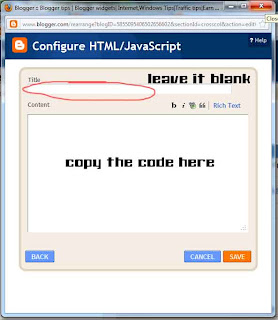
  • Go to blogger dashboard>Design>Page element>Add a Gadget>HTML/Java script
  • Paste the code under content and save
  • Your done!


Chrome  Pointer


X-Steel - Link Select 2


Cool Blue Outer Glow Pointer


Batman Begins Background


The images are hosted on http://www.cursors-4u.net where you can find many more with codes to add it to your blog or site. You can find many professional as well as personal cursors there. You can also make one from the example of the code or wait for the next tutorial on how to create your own cursor very easily.

Monday, February 20, 2012

Speed up start menu on windows. . . . . .Techlove

The start menu of Windows XP, aside from being extremely large, it is also too slow to load. If you want to accelerate the speed at which to display this menu, go to the Windows registry by enter the regedit command in Run.
Once there you will get to the option: MenuShowDelay.  This follows the sequence: * HKEY_CURRENT_USER Control Panel * Desktop * MenuShowDelay, or look it up directly with the "search" in regedit. Once located double click on this option and change the default value is on (400) by a lower value. Put the value "0" to get the most speed.


Then click the OK button and then reboot your computer for the changes to take effect and you can see the difference.
Tags: Techlove tricks, Pc tricks, strat menu problem trick

Browse the internet Faster with your browser . . . Techlove

To increase the speed of access to HTTP servers, and display webpages more fluent, follow these steps:

Click the Start button and then on Run, type Regedit and press the OK button.

Once you are in the registry editor seeks the following string:
( Start -> Run -> regedit )

HKEY_CURRENT_USER \ Software \ Microsoft \ Windows \ CurrentVersion \ InternetSetting

In the right window, create or modify the following DWORD values:

MaxConnectionsPerServer: double click on that and write 4 decimal value (for ADSL write 20)

double click on that value and type 8 in decimal (for ADSL write 20)

These values ​​correspond to the number of simultaneous requests for access to a server of type 1 or 1.1. Close Regedit and restart Windows.
Tags: Techlove, internet tricks, PC tricks free gprs tricks

Speed up your hard disk . . . Techlove

To speed up access to our hard drives in a more rapid is necessary to activate each channel UDMA hard drive and for this we will:


 We click on the Start button and then right mouse click on My Computer and click Properties.
.Then click on the Hardware tab and then on the Device Manager button.


 Now open the tree of the hard drives and with the right mouse select Properties.
We click on the Advanced Settings tab, and select if it is not already the DMA mode.

Techlove, Pc tricks, mobile tricks, free gprs tricks, hard disk tricks

Dynamic Views Button with jquery Effect for Blogger Blog

Here is a Simple Tip to Set a Button for Changing the Blog View to Dynamic Views.I added Smooth jquery Hover Effect to Button.You can set any template to your Blogger Blog.If you add this Button to your Blog.It lets your Blog visitors to View Blog in Dynamic Views when they Click this Button.


Add Dynamic Views Button to Blog

Make sure you had Backed up your Template before editing Template.(How to Backup Template)

  • Go to Design -> Edit HTML
Step 1.Add jQuery Plugin( If your Blog already have a jQuery plugin ignore this Step ),
    • Go to Design->Edit HTML
    • Copy and Paste Below code inside section
    Step 2: Add Dynamic view button,
    •  Go to Design-> Page Elements
    • Click on Add Gadget ,Select HTML/Javascript from it
    • Leave Title as blank, Copy the below code inside content section.


      Click this for change the view to Dynamic views


      • Then Save it.
      • That's all,you are done..
      I hope you enjoyed this article,if so please share n like us.